Introduction
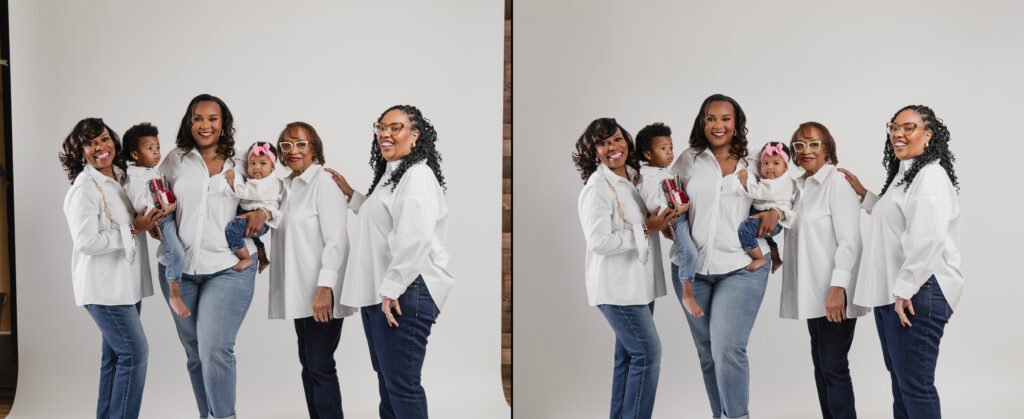
When it comes to portrait photography, capturing the moment is only half the battle. The other half lies in post-processing—refining colors, adjusting exposure, and ensuring your subject looks their absolute best.
Even the most perfectly shot portrait can suffer from color imbalances, lighting inconsistencies, or exposure issues. That’s why learning color correction and exposure adjustment is essential for photographers, editors, and creative professionals alike.
In this guide, we’ll break down:
Why color correction matters
Common exposure mistakes in portraits
Step-by-step methods to adjust colors and exposure
Professional tips to achieve natural, balanced results
Why Color Correction Is Crucial for Portraits
Color correction is not just about making an image “look good.” It’s about:
- Preserving Skin Tones – Ensuring the subject’s skin appears natural and flattering.
- Balancing Lighting – Fixing any color cast from natural or artificial lighting.
- Enhancing Mood – Warmer tones can make a portrait feel inviting, while cooler tones can evoke calm or professionalism.
- Consistency Across a Series – Especially important in professional shoots and social media feeds.
Understanding Exposure in Portrait Photography
Exposure determines how light or dark an image appears. In portraits, incorrect exposure can:
1.Blow out highlights, losing detail in bright areas
2-Cause shadows to be too deep, hiding important features
3-Create an unnatural, flat look if not balanced properly
The Three Elements of Exposure
- Aperture (f-stop) – Controls the amount of light entering the lens.
- Shutter Speed – Determines how long the camera’s sensor is exposed to light.
- ISO – Adjusts the camera’s sensitivity to light.
- If any of these are off, post-processing adjustments become necessary.
Step-by-Step: Color Correction for Portraits
Step 1: Evaluate the Image
Open the portrait in your editing software (Adobe Lightroom, Photoshop, Capture One, etc.).
identify any color casts (e.g., yellow from tungsten lights, blue from daylight).
Step 2: Adjust White Balanc
Use the eyedropper tool to sample a neutral gray or white point in the image.
Manually tweak temperature (warmth) and tint until skin tones look natural.
Step 3: Fine-Tune Hue, Saturation, and Luminance (HSL)
Reduce redness or yellowness in skin tones.
Enhance eye color subtly for more impact.
Keep saturation moderate to avoid unrealistic results.
Step 4: Use Color Grading for Mood
Add warm shadows for a golden, cinematic feel.
Cool highlights for a clean, fresh look.
Step-by-Step: Exposure Adjustment for Portraits
Step 1: Check the Histogram
A well-balanced exposure will show details in both shadows and highlights without extreme clipping.
Step 2: Adjust Exposure Sliders
Increase exposure slightly if the image is too dark.
Lower highlights to recover bright details.
Lift shadows to reveal hidden features.
Step 3: Enhance Contrast
Slightly increase contrast or use the curves tool for more depth.
Avoid excessive contrast to keep skin tones smooth.
Step 4: Local Adjustments
Use radial filters or dodge & burn techniques to highlight the face and eyes.
Darken distracting background areas to keep focus on the subject.
Pro Tips for Natural Results
Edit Non-Destructively: Use layers or virtual copies.
Zoom In for Skin Tones: Minor color shifts can make a huge difference in close-ups.
Avoid Over-Editing: The goal is to enhance, not transform.
Calibrate Your Monitor: Accurate colors require a properly calibrated display.
Batch Process for Consistency: Apply similar settings across a series for cohesive results.
Recommended Tools for Color and Exposure Correction
Adobe Lightroom – Ideal for batch processing and HSL adjustments.
Adobe Photoshop – Perfect for advanced, selective edits.
Capture One – Professional-grade color accuracy and skin tone tools.
Luminar Neo – AI-powered quick adjustments.
Final Thoughts
Color correction and exposure adjustment are essential skills for any portrait photographer. With the right techniques, you can transform a good photo into a stunning, professional-quality portrait that stands out. Whether you’re editing for a client, a portfolio, or your social media, mastering these tools will help you deliver consistent, high-impact results.